

How-tos
Change one thing in a video without reshooting: AI video editing with Live Edit
Name an object in your clip, then recolour it, light it, label it, remove it or swap it, with the rest of the shot left as it was.
What Live Edit does
Most AI video tools make a new clip from a prompt, which is right when you need a new shot (our guide to which AI video model suits which job covers that). But often the shot is fine and one thing in it is wrong: the jacket should be the brand colour, the prop is the wrong prop, the light is flat. Regenerating the whole clip risks changing the face, the camera move and everything else you liked.
Live Edit works the other way round. It reads your clip once. You name an object, such as "the red coat", and it is tracked through every frame as a layer. Edits apply to that layer only; the rest of the frame is your original footage. You can also type a change in plain words, like "make the coat olive, golden hour", and the page turns it into the same controls.
The workflow
- 1Open a clip
From your Library, or upload one. Up to 60 seconds and 1080p.
- 2Analyse
One charged step that reads the scene's depth, which light and layers need. About a minute.
- 3Name objects
Type what to pick out ("turban", "saree"). Each becomes a tracked layer, charged once.
- 4Edit live
Recolour, grade, relight, add text, change the background. Free, on the playing clip.
- 5Render if needed
Remove, move, swap or retexture. Charged; you can keep editing while it works.
- 6Export
Free, with the clip's sound. Each export is a new version.
Whole-frame colour works before you analyse. If a named object is not found, that layer is refunded; plainer words like "jacket" or "car" work best.
Which edits are free, and which cost credits
If a change can be drawn from pixels already in your clip, it is live and free. If a model has to invent pixels that were never shot, such as the table behind a removed bowl, it is a render and it is charged.
| Operation | Speed | Cost |
|---|---|---|
| Recolour (pick a colour or type a hex code), grade, looks: Golden hour, Blue hour, Overcast, Night | Instant | Free |
| Relight from the scene's depth; texture: softer, sharper, sheen | Instant | Free |
| Text pinned to an object, hide and show, replace the background with a colour or picture | Instant | Free |
| Analyse the clip | About a minute | By the second of clip |
| Pick out an object | Under a minute on short clips | By the number of frames |
| Remove or move (fills the background once; then removing or moving is live) | About two minutes on short clips | Per piece of up to 197 frames |
| Swap, or retexture (longer, fuller, a new material) | Usually 3 to 15 minutes | Per piece of up to 15 seconds, plus one tracking pass |
| Export, server export, Send to Video Editor | Seconds to minutes | Free |
A typed change is one small charged model call (2 credits in our tests). Anything that fails, from an analysis to a render to a typed change the page cannot understand, is refunded. Here is what our test clips cost, read from each step's record:
Credits per step: a 4-second clip against a 60-second clip
Example 1: a full restyle with free edits only
A 5-second AI-made clip of a woman in a rust saree turning in a living room. We named "saree" and "woman". Then, with no renders, we recoloured the saree olive, kept the woman and replaced the room with flat blue, applied Golden hour, and pinned "Pure handloom" to the saree.
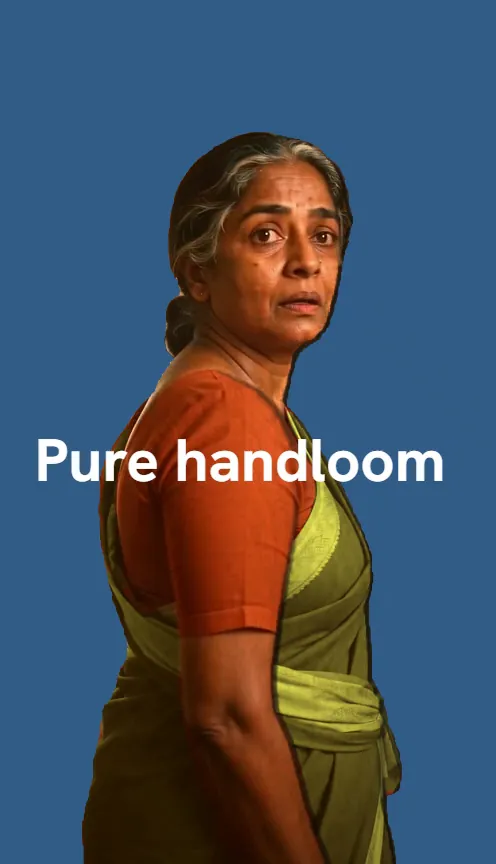
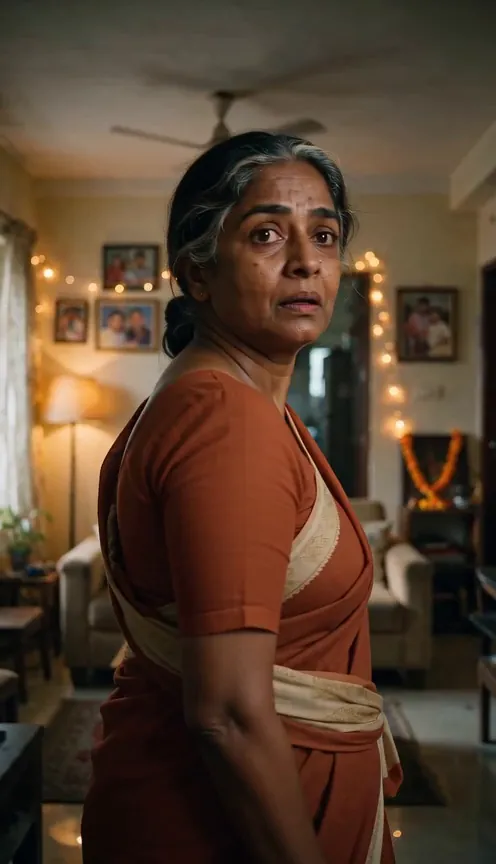
Look closely and you will see a thin dark edge where her outline meets the blue. A flat colour shows it most. For a full green-screen style key, our video background remover is built for that job.
Example 2: remove one thing, swap another
A 4-second AI-made clip: a bartender pours drinks for a family at a table strung with fairy lights. We wanted the man's maroon turban in saffron, a warmer feel, and the fruit bowl gone.
- Analyse: 26 credits. Pick out "turban" and "bowl of fruit": 5 each.
- Remove the bowl: 13 credits.
- Swap the turban for "a bright saffron yellow silk turban": 36 credits.
- Golden hour look and export: free.
That is 85 credits in all. The swap is pasted back only around the turban, so faces, hands and the camera move are the original footage.
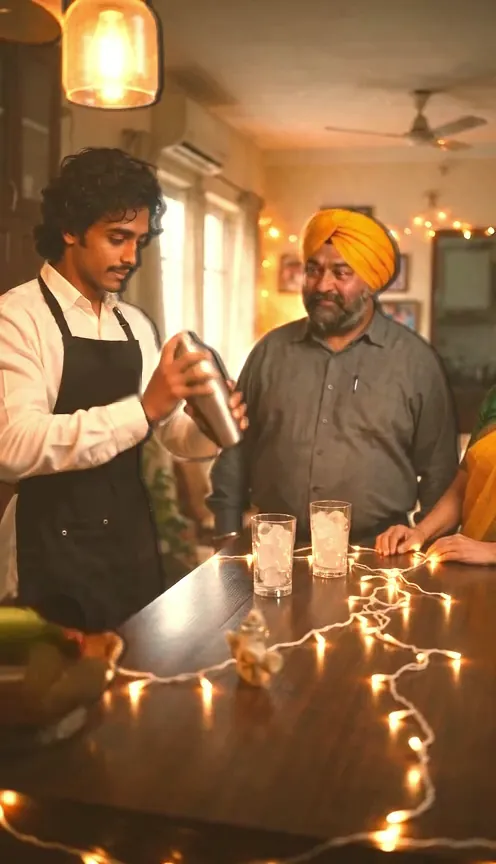
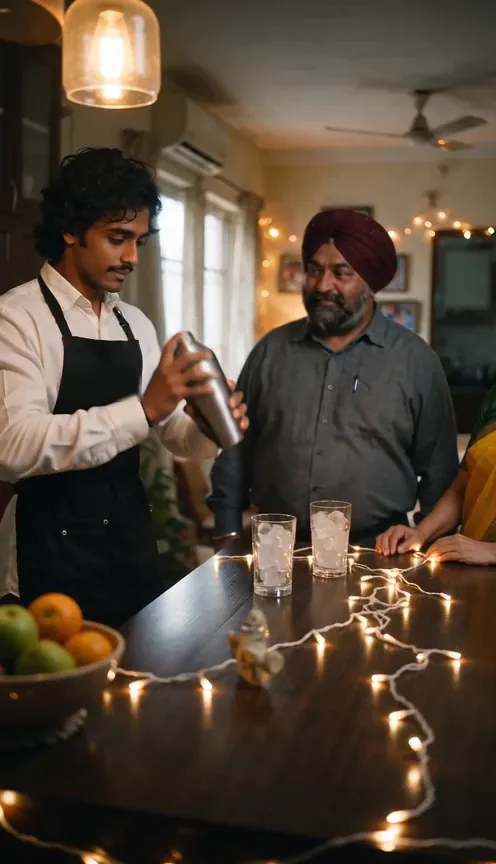
We show this frame on purpose. When an object runs off the edge of the frame, the removal model has little to go on and leaves a smear. For taking people out of a shot, see people and object removal.
Example 3: a clean single swap
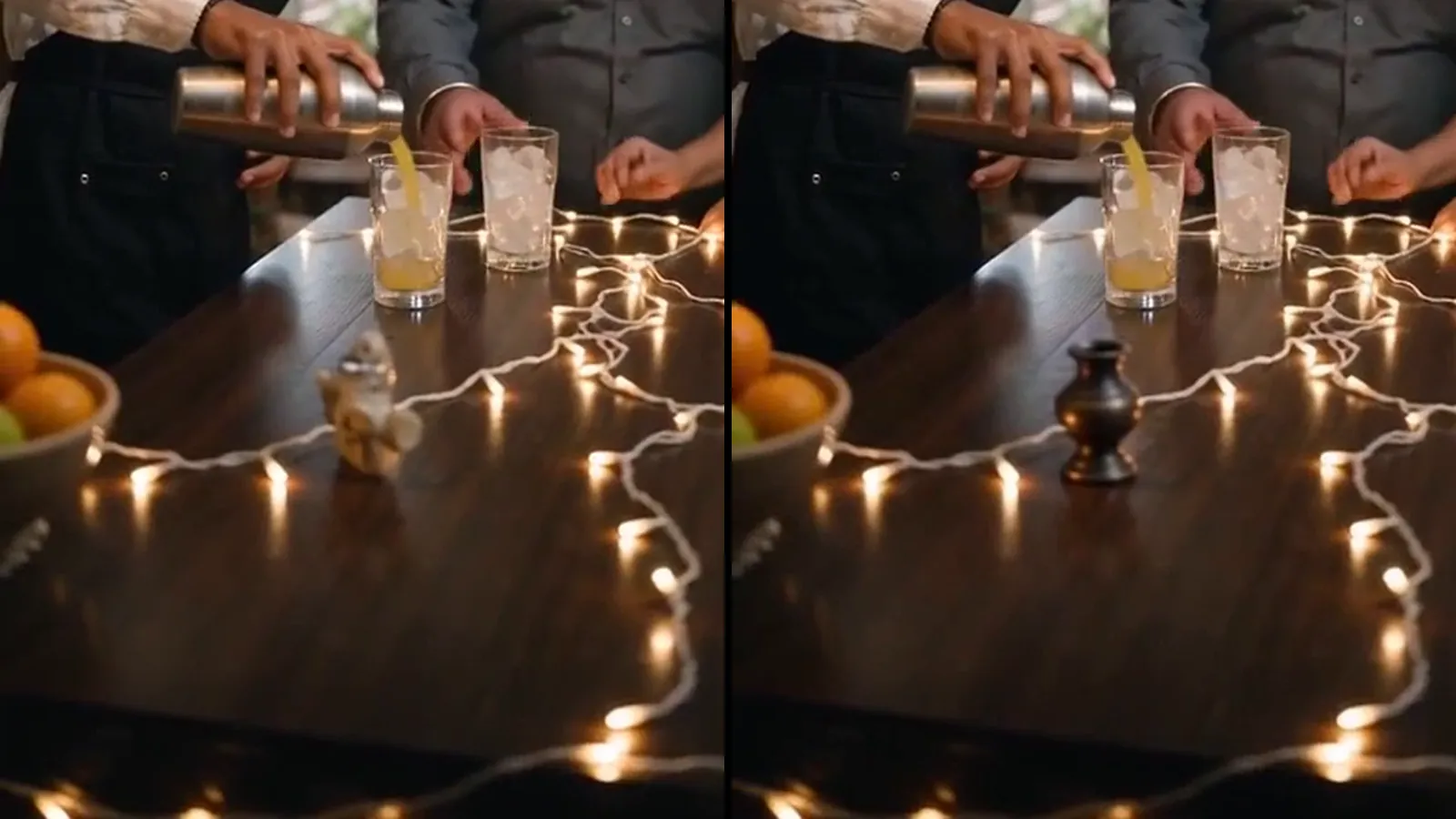
A 6-second, 640×640 clip of the same table, closer in, with a small pale figurine. We asked for "a small dark antique brass vase". Cost: 60 credits, 54 for the video model's edit and 6 to track the new vase. It was found on 134 of 144 frames; in the other 10, something passes close to the camera and hides the table.
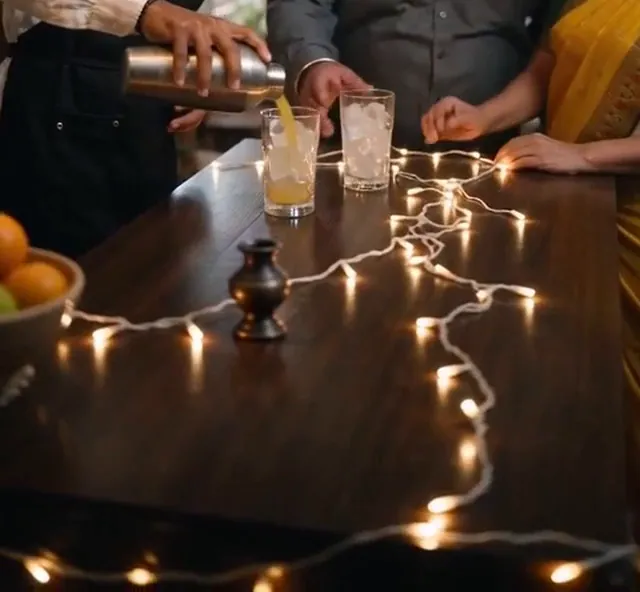
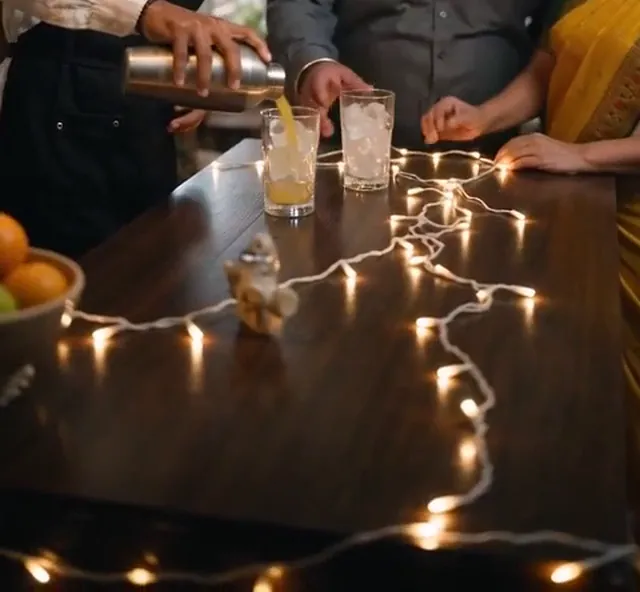
Swaps use a Seedance video model. To make a fresh shot with the right prop instead, see our Seedance 2.5 prompt guide.
Clip limits and how long things take
- Length: up to 60 seconds and 2,400 frames (40 seconds at 60 fps).
- Size: up to 1080p, 1,920 pixels on the long side.
- Per clip: up to 5 objects and 6 texts of up to 80 characters; one render per object at a time.
- Long clips: removals run in pieces of up to 197 frames, swaps in pieces of up to 15 seconds, joined with a cross-fade. You pay per piece.
Measured in our tests on 4- and 5-second clips: analysis 20 to 38 seconds, picking out an object under 30 seconds, a removal 100 to 140 seconds, a swap about 4 minutes. On a 60-second clip, tracking took 100 to 136 seconds per object and each 15-second swap piece about 6 minutes.
Export, and sending to the Video Editor
In Chrome and Edge, your browser draws and encodes the export and our server adds the sound. In Firefox and Safari, our server draws the same picture, with a progress percentage on the button. Both are free. In our tests a server export took under 30 seconds for a 4-second clip and about 6 minutes for a 60-second one.
Send to Video Editor, next to each export, makes a new Video Editor project: the export on the first track and, above it, each object you have not changed cut out on green with the chroma key already set, to move, scale, time or grade on its own. Removed, moved, swapped or hidden objects get no track. Free.
Live Edit for AI agents (MCP)
Through OyeFilmy's MCP server, an AI assistant gets five tools: live_edit_open, live_edit_layer, live_edit_apply, live_edit_status and live_edit_export (a free server render). A charged call returns its price and does nothing until it is repeated with that exact price, so the agent must ask you first. Edits sent together apply all or none, and charges count against the API key's monthly spend cap.
What it does not do well yet
- Objects cut off by the frame edge can smudge when removed (Example 2).
- Removal is a guess. In our 60-second test a removed glass left a faint ghost in a hand, and once a glass came back as a juice glass.
- Long swaps can drift. In a 30-second test, the second piece's vase was a touch rounder at the base.
- No new cast shadows live. Relight shades from depth; for shadows on the ground, the page sends you to the Relight tool.
- Tested on AI-made clips only. We have not yet tested real camera footage with heavy motion blur, grain or fine hair.
If the clip is part of a longer story, Drama Studio can redo one scene, and Live Edit can polish the result.
Questions
Can I remove an object from a video with AI?
Yes. Name it in Live Edit and choose Remove. The background behind it is filled in once, charged per piece of up to 197 frames; after that, removing or moving it is instant.
How do I change the colour of one object in a video?
Analyse the clip, add the object as a layer by name, then pick a colour or type a hex code in the Colour tab. It is free and instant.
How long can my clip be?
Up to 60 seconds, 2,400 frames and 1080p, so a 60 fps clip can be up to 40 seconds.
Does exporting cost anything?
No. Exports and Send to Video Editor are free. You pay for analysis, objects and renders only.
Can I use footage I shot on my phone?
Yes, upload it. Every test here used AI-made clips, so we have not yet measured results on real camera footage.
Fix the one thing, keep the shot
Open a clip, name what you want to change, and see the price before anything is charged. New accounts start with free credits.